So a customer lands on your site and starts tabbing through the menu with their keyboard. Where’s the cursor? They have no idea. Another visitor, this one on a screen reader, makes it all the way to checkout before running into form fields with no labels (the screen reader just keeps saying “edit text,” which tells them nothing). This isn’t some rare edge case. It happens constantly, and it quietly costs you sales, trust, and sometimes a legal headache on top of that.
If you own the business, handle the marketing, or build the site, here’s the thing: ADA compliance for small business isn’t a “we’ll deal with it at the next redesign” item anymore. And it’s not just the website. Your booking system counts. So does checkout, and those PDFs you’ve got floating around, and whatever the mobile version looks like. All of it decides whether someone can get to what you sell without needing help.
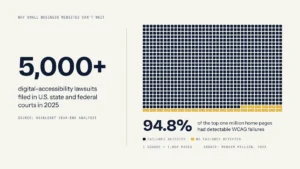
Want a number? UsableNet’s year-end analysis found more than 5,000 digital-accessibility lawsuits filed across U.S. state and federal courts in 2025. Five thousand. Nobody’s too small to get noticed at that volume.
Why Small Businesses Need a 2026 Plan
“Digital accessibility” gets thrown around a lot, but it’s pretty simple. Your online stuff has to work for people with disabilities, and keep working after you update it. That means folks on screen readers, people who get around with a keyboard instead of a mouse, speech input, magnification, captions… the whole range of assistive tech.
The question owners usually ask is “Does the ADA apply to my website?” In practice, for most businesses that deal with customers, ignoring accessibility is just taking on risk for no good reason. Title III of the ADA applies to places of public accommodation, and website claims have gone after retailers, restaurants, hotels, healthcare providers, gyms, and professional service firms. Pretty much everyone, really.
Settling quickly doesn’t make it cheap. An ADA lawsuit small business owners get hit with can snowball fast: there’s the lawyer, then the remediation, your developer’s time, a marketing calendar that gets blown up, and whatever it does to your reputation. Add it all up and you’d usually have been better off doing the work before anyone complained.
It’s a quality problem, too. The 2025 WebAIM Million report looked at the top one million home pages and found detectable WCAG failures on 94.8% of them. That’s almost all of them! Sure, they’re not all broken in the same way. But it tells you these barriers are everywhere.
ADA Website Requirements: What Applies
Here’s the frustrating part. No single federal law hands private businesses a tidy list titled “ADA website requirements.” (People keep searching for it anyway.) What exists instead is WCAG, and in practice that’s the yardstick everybody reaches for, whether it’s audits, settlements, procurement, or a lot of legal situations.
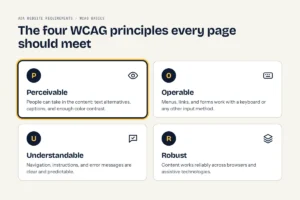
WCAG stands for Web Content Accessibility Guidelines. It comes from the W3C (the World Wide Web Consortium), and the whole thing hangs on four principles. Perceivable means people can actually take the content in, so you need text alternatives, captions, decent color contrast. Operable is about controls: can someone use them with a keyboard or some other input? Understandable covers navigation, instructions and error messages, which should be clear and not do anything weird. And robust just means the content holds up across browsers and assistive tech.
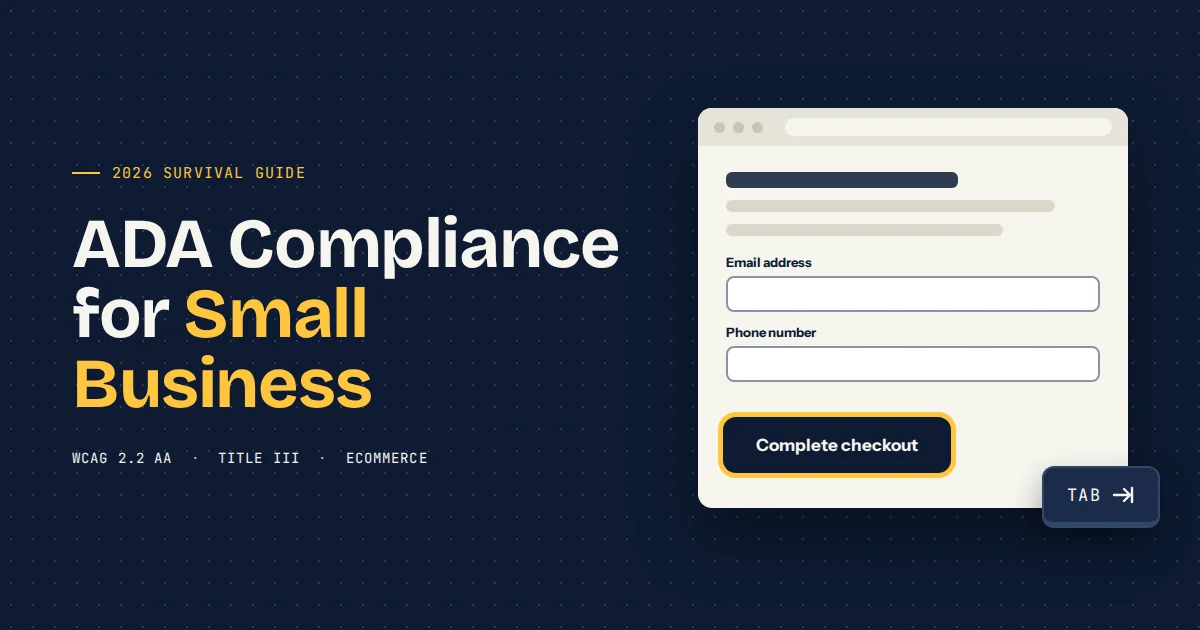
Which version should you aim for? For most small businesses doing a new build or fixing an old one, WCAG 2.2 Level AA is a sensible target. It’s newer than 2.0 and 2.1, and a lot of what it adds is about practical stuff real users run into.
The public-sector deadlines to know
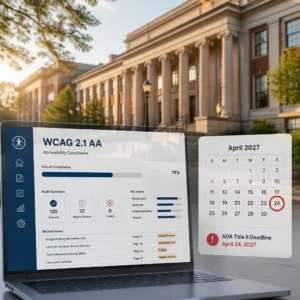
Side note, because this one confuses people. The DOJ’s Title II rule is for state and local governments. Not private businesses. It’s still worth paying attention to, though, since it formally locks in WCAG 2.1 Level AA for covered government websites and mobile apps.
The deadlines were supposed to be April 24, 2026 for bigger public entities and April 26, 2027 for smaller ones and special districts. That changed in April 2026 when the DOJ extended them. An entity serving a population of 50,000 or more now has until April 24, 2027; smaller entities and special districts have until April 26, 2028.
None of that buys a private business any extra time, by the way. Title III lawsuits (and what your customers expect) roll on regardless of the Title II schedule.
The EAA matters to some U.S. companies
The European Accessibility Act kicked in on June 28, 2025. You might figure a European law isn’t your problem if you’re based in the U.S., but if you sell certain products or services to EU consumers, it can apply to you. Ecommerce, banking, transport, telecom and digital services are the big ones.
So if you’re selling to people in the EU, get a qualified lawyer to tell you whether the EAA covers you. Having a WCAG-based program in place makes the cross-border side a lot easier to manage. It isn’t legal advice, though, and it won’t replace it.
WCAG 2.2 Changes That Matter
WCAG 2.2 added nine success criteria to what was already in 2.1. Not all of them will matter much for a small business site, but a few really do, mostly the ones touching checkout, logins, contact forms, help tools and mobile menus.
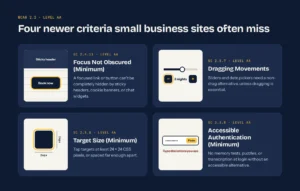
For Level AA, these are the four I’d watch:
Focus Not Obscured (Minimum). Someone tabs to a button and… it’s hidden behind your sticky header. Or the cookie banner. Or that chat bubble in the corner. Under this criterion, the focused item can’t be completely covered up like that.
Dragging Movements. Got a slider, or a calendar where you drag to pick dates? There needs to be a way to do it without dragging, unless dragging is genuinely essential.
Target Size (Minimum). Many tap targets need to be at least 24 by 24 CSS pixels. Smaller than that, and they need enough space around them that people don’t fat-finger the wrong one.
Accessible Authentication (Minimum). A login shouldn’t rely only on remembering something, solving a puzzle, or copying characters. Not without an accessible alternative, anyway.
The rest of the 2.2 additions deal with consistent help, not making people re-enter the same data, enhanced focus visibility and stricter authentication options. Put together, they take a lot of friction out for people with cognitive, motor or low-vision disabilities.
My rough rule: if finishing an important task takes a mouse, steady hands, good color vision, hearing, or a sharp memory, go look at it again. It probably needs work.
Is My Website ADA Compliant?
Short answer? An automated scan won’t tell you. Those tools catch code-level patterns, and they’re handy for that, but they can’t really judge whether your alt text means anything, whether form instructions are clear, or whether moving through a real checkout by keyboard actually makes sense.
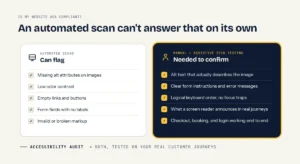
What you want is an accessibility audit that mixes automated tests with manual testing and hands-on checks using assistive technology. A decent one looks at your templates and your actual workflows. The home page alone doesn’t cut it.
Check your highest-risk user journeys
Start with the pages where people decide to buy, book, or get in touch. Usually that’s:
- Navigation menus and search.
- Product and service pages.
- Contact forms, quote requests, and appointment booking.
- Ecommerce product filters, carts, checkout, and payment fields.
- Account creation, login, password reset, and customer portals.
- Downloadable PDFs, applications, menus, price lists, and policies.
- Embedded tools like chat, maps, scheduling widgets, and payment providers.
Get someone to go through each of these using only a keyboard, then do it again with a screen reader. Did they get stuck inside a pop-up? Lose track of focus when a menu opened? Miss an error message, or fail to submit a form at all? Write it down and move it up the list.
Watch for common failures
Honestly, most of what goes wrong is pretty basic:
- Images with missing or inaccurate alt text
- Low-contrast text, buttons, or error messages
- Links or buttons that are empty, so a screen reader has nothing to announce
- Unlabeled fields (email, phone, credit card details)
- Headings picked because they looked nice, not because they fit the page structure
- Keyboard focus you can’t see, can barely see, or can’t escape from
- Videos without captions
- Error messages that only use color to say something’s wrong
- PDFs that are really just scanned images instead of tagged, accessible documents
And it’s not only an accessibility thing. The same problems drag down search, conversions, usability, even your support costs. A checkout form with clear labels helps the screen-reader user, obviously. It also helps the guy in a parking lot squinting at his phone, trying to finish paying.
A Practical Remediation Process
The businesses that get this right treat ADA compliance for small business as something they keep doing, not a one-and-done cleanup. Find the barriers. Fix them where they actually live, in the code or the content system. Check the fix with testing tools and real users. Then stop them from sneaking back in.
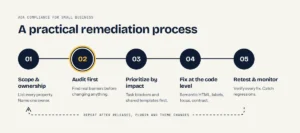
1. Establish scope and ownership
Write down every public-facing digital thing you’ve got. Websites and subdomains, landing pages, the online store, mobile apps, PDFs, that old campaign microsite nobody remembers, third-party tools. Then put one person in charge, someone who can get marketing, dev, support and leadership pulling the same direction.
Which journeys bring in the money, or give people access to your service? Review those first.
2. Audit the site before changing it
Don’t rush out and install an overlay. Don’t just post a boilerplate accessibility statement either. Figure out what’s actually broken, and why, before you touch anything.
A good audit covers automated scanning, keyboard testing, screen-reader testing and responsive checks, plus a look at components like menus, modals, forms and product cards. It should also tell you where each problem comes from: your own code, your content, the CMS theme, or some vendor’s tool.
3. Prioritize by user impact
Blockers first, polish later. A checkout button that doesn’t work, a booking calendar nobody can use, a payment field with no label? That’s urgent, because it’s keeping someone from a core service.
Next up are problems that repeat across templates. Fix one broken nav component and you’ve fixed it on every page it shows up on, which beats going page by page.
4. Remediate at the code level
Fixes that last happen in the code, the content patterns and the design system. For developers, that might mean semantic HTML, accessible names, a proper heading hierarchy, error identification, keyboard behavior, focus management, and enough contrast.
Content folks have homework too. They need guidelines on writing useful alt text, link text that means something, captioning video, structuring headings, and making accessible documents.
5. Retest and monitor
A fix isn’t done until someone’s checked it. Retest that exact issue, then run the whole journey again to be sure you didn’t break something else along the way.
Accessibility has a way of sliding backwards. A new campaign goes out, somebody installs a plugin, the theme updates, you switch ecommerce platforms, and suddenly things regress. That’s why accessibility checks belong in design review, QA, vendor evaluation and every release.
Ecommerce Accessibility Needs Special Attention
Ecommerce accessibility gets its own section for a reason. One inaccessible piece anywhere in the flow can kill the sale. A shopper can reach the product page without any trouble and then get stuck choosing a size. Or applying a promo code. Or typing an address, or confirming payment.
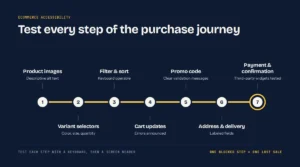
So test the entire path to purchase:
- Product images, with descriptive alt text
- Variant selectors (color, size, quantity)
- Filter and sort controls
- Cart updates and error messages, and whether screen readers actually announce them
- Promo-code validation
- Address forms and delivery options
- Payment methods, plus the confirmation page
Third-party tools are where risk likes to hide. You probably don’t control every line of code in your payment, reviews, loyalty, shipping or chat widgets. Customers don’t care; to them it’s all your website. Vet vendors before you deploy, ask for their accessibility documentation, and test the live integration yourself rather than trusting whatever the vendor claims.
How to Reduce Lawsuit Risk Without Empty Promises
Let’s be straight about this. No vendor can guarantee you’ll never get a demand letter or get sued. What accessibility work does is remove barriers, make your service better, and show you’ve made an organized effort to meet recognized standards. That’s the honest pitch.
Good ADA compliance services can help you set this up. Either way, a credible program usually has:
- A documented audit and a prioritized backlog of fixes
- Defined standards, e.g. WCAG 2.2 Level AA for anything new
- Clear accessibility responsibilities for your staff and your vendors
- A public accessibility statement, with a contact channel that actually works
- A process for responding when people send accessibility feedback
- Periodic testing after big releases and content changes
- Records of your fixes, testing, training and vendor communications
About that accessibility statement. It’s only worth something if there’s real work behind it. Don’t use it to promise compliance you can’t back up, and don’t treat it as a stand-in for fixing things.
FAQ
Does ADA compliance apply to every small business website?
It depends. Your business type, where you’re located, your relationship with customers and your legal jurisdiction all play into it. But if you deal with customers, treat accessibility as a real business and legal risk. Don’t assume being small gets you a pass.
What is the best standard for a small business website ADA effort?
WCAG 2.2 Level AA is a practical target for most modern websites. Right now the DOJ’s Title II rule uses WCAG 2.1 Level AA for covered state and local government entities; 2.2 builds on that with newer guidance around focus visibility, touch targets, dragging, help, repeated entry and authentication.
Can an accessibility overlay make my site compliant?
No. An overlay might give users a few interface adjustments, and that’s about it. It generally can’t fix what’s underneath: invalid HTML, inaccessible forms, missing labels, keyboard traps, bad focus behavior, inaccessible PDFs, problems inside third-party widgets. Root causes need testing and real code-level fixes.
How often should accessibility be tested?
Before major releases. After platform or plugin changes. Any time you roll out new templates or key customer journeys. On top of that, a regular monitoring schedule helps you catch regressions that creep in through normal content and code updates.
At the end of the day, ADA compliance for small business comes down to one question: can your customers find information, get in touch, and do what they came to do, without hitting barriers that shouldn’t be there? Take a focused look at your most important customer journeys and you’ll see pretty quickly where to start. Request a free accessibility assessment to figure out practical next steps for your website.